

Recommended buying guides
Turn this advice into a better setup
If this guide helped you identify what needs fixing, these related buying guides are the next practical step.
Let me be honest with you about something most home office guides won’t say: you don’t need to spend $3,000 to have a setup that feels great and keeps you healthy. But you do need to stop guessing.
- Why Your Setup Matters More Than Your Discipline
- Step 1 — Choose the Right Location
- Step 2 — The Chair: Your Most Important Purchase
- Step 3 — Desk Height and Type
- Step 4 — Monitor Position
- Step 5 — Keyboard and Mouse Position
- Step 6 — Lighting
- Step 7 — Cable Management
- Step 8 — The 20-20-20 Rule
- Quick-Start Checklist
Why Your Setup Matters More Than Your Discipline
Here’s something the productivity gurus won’t tell you: willpower is finite. If your chair is uncomfortable, your brain starts allocating mental resources to managing that discomfort instead of doing actual work. Studies from Cornell University’s Human Factors and Ergonomics Lab have repeatedly shown that ergonomic improvements produce measurable productivity gains — not because people work harder, but because they stop fighting their environment.
Fix the environment. The focus follows.
Step 1 — Choose the Right Location
Before you buy anything, get the location right. A bad location defeats even the best equipment.
Natural light: Position your desk perpendicular to the window — not facing it (glare) and not with it behind you (screen reflections). Natural light on your side is the sweet spot.
Separation: If you have a spare room, use it. If not, create a psychological boundary — a specific corner, a divider, even just a rug that defines “work space.” Your brain needs to know when you’re at work and when you’re not.
Noise: This is personal. Some people focus better with background noise. Others need silence. Test before you permanently arrange your setup.
Power and connectivity: Make sure your chosen spot has enough outlets and, ideally, ethernet access. Wi-Fi is convenient; wired is reliable.
Step 2 — The Chair: Your Single Most Important Purchase
I’ll say this plainly: if you’re going to spend money on one thing, make it the chair. You will sit in it for 6–8 hours a day. The quality of that chair determines your back health, your energy levels, and whether you end the workday feeling human or like a crumpled piece of paper.
What to look for:
- Adjustable lumbar support — it must be adjustable, not just present. Your lumbar curve is unique to you.
- Seat height adjustment — your feet should rest flat on the floor, knees at roughly 90 degrees.
- Armrests — ideally 3D (move up/down, in/out, forward/back). Armrests that force your shoulders up or out will cause neck pain within weeks.
- Seat depth adjustment — you should have 2–3 fingers of clearance between the back of your knee and the seat edge.
- Recline mechanism — the healthiest sitting angle is 100–110 degrees, not 90. Get a chair that lets you recline slightly.
Step 3 — Desk Height and Type
The right desk height: when sitting with your shoulders relaxed and elbows at 90 degrees, your forearms should rest comfortably on the desk surface. For most people, this is 28–30 inches.
Standard desks are fixed at 29–30 inches — fine for people of average height. If you’re significantly taller or shorter, consider an adjustable-height desk.
Standing desks: are they worth it?
Short answer: yes, if you actually use them. The research shows that alternating between sitting and standing every 30–60 minutes reduces fatigue, back pain, and afternoon energy crashes. The key word is alternating — standing all day is not better than sitting all day.
If a full standing desk isn’t in your budget, a desktop converter (a riser that sits on top of your existing desk) runs $150–$250 and works well.
Step 4 — Monitor Position
This is the most commonly wrong thing in home offices, and it causes more neck and eye problems than almost anything else.
- Top of the screen at or just below eye level — you should be looking very slightly downward at the center of the screen.
- Distance: arm’s length away (roughly 20–28 inches depending on screen size).
- Tilt: 10–20 degrees backward so the bottom of the screen is slightly closer to you than the top.
- If you use a laptop as your primary screen: get a laptop stand. Laptop screens are always too low. Always. Add an external keyboard and mouse and raise the laptop to eye level.
Step 5 — Keyboard and Mouse Position
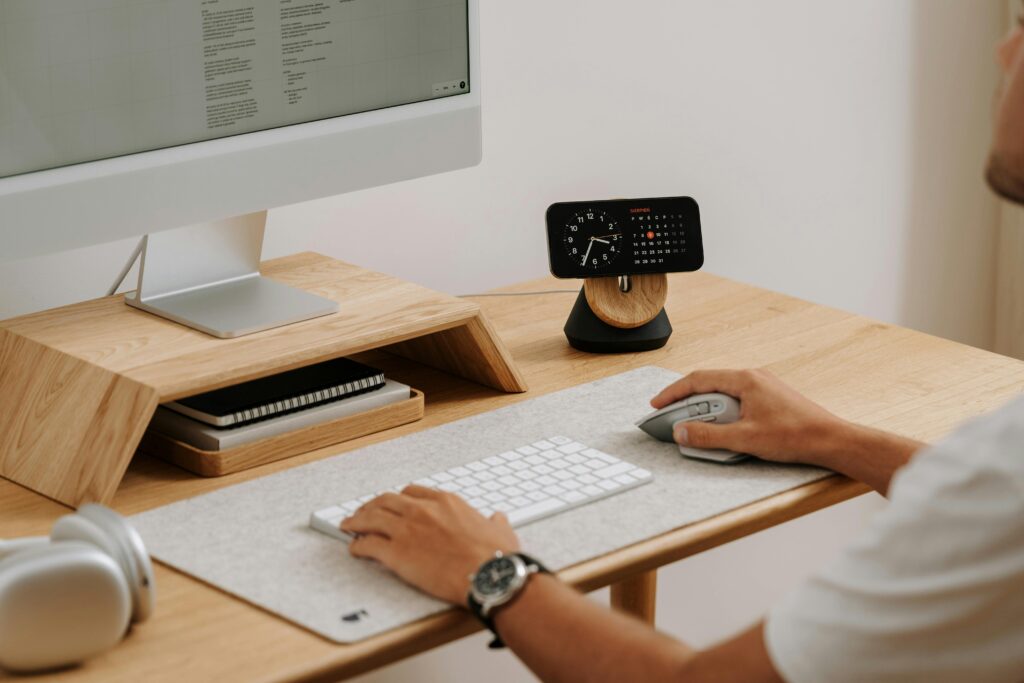
Your keyboard and mouse should be at elbow height, close enough to your body that your arms hang naturally at your sides. Many people push them too far away, which forces the shoulders to rotate forward and inward — a fast path to rotator cuff issues.
Wrist position: Neutral — not bent up or down. If your keyboard is at the right height, this happens naturally.
Mouse: Keep it close. Mouse placement that requires you to reach out is a leading cause of shoulder impingement in desk workers.
Ergonomic keyboards: Split or angled keyboards feel awkward for the first week and then you’ll never want to go back. They keep your wrists in a more natural position — worth considering if you type all day.
Step 6 — Lighting
Bad lighting is one of those invisible productivity killers. You don’t realize how much it’s affecting you until you fix it.
Three-layer lighting:
- Ambient light (room light): Bright enough to prevent high contrast between your screen and the room, but not harsh. Overhead fluorescents are the worst. Warm LED panels are better.
- Task light: A dedicated desk lamp pointed at your work surface (not your screen) reduces eye strain during document review, reading, and note-taking.
- Screen backlight: A bias light behind your monitor — a simple LED strip that shines on the wall behind the screen — dramatically reduces eye fatigue caused by a bright screen in a dark room.
Step 7 — Cable Management
This sounds like a cosmetic issue. It is not.
Visible cable chaos creates what researchers call “visual noise” — background stimuli that your brain processes continuously at low priority. It’s a subtle but real drag on focus and mood. A clean desk isn’t just about aesthetics; it’s about giving your brain fewer things to process.
Quick wins: A cable tray mounted under your desk ($20), velcro cable ties ($8), and a cable box to hide your power strip ($25) will transform your setup for under $60.
Step 8 — The 20-20-20 Rule
Every 20 minutes, look at something 20 feet away for 20 seconds. This resets your eye focus muscles and dramatically reduces digital eye strain.
Also: stand up and walk around for 2 minutes every hour. Set a timer. You won’t do this naturally. The timer is not optional.
Quick-Start Checklist
- Desk perpendicular to window
- Chair: lumbar adjusted to fill lower back curve
- Chair: seat height so feet flat on floor, knees at 90°
- Monitor: top of screen at eye level
- Monitor: arm’s length away from face
- Keyboard: at elbow height, close to body
- Mouse: close to keyboard, not reaching
- Task light on desk (not pointing at screen)
- Cables managed and off the desk surface
- 20-20-20 rule timer set
Ready to upgrade your chair? We’ve done the hard work for you.
See the 5 Best Ergonomic Office Chairs of 2026 →