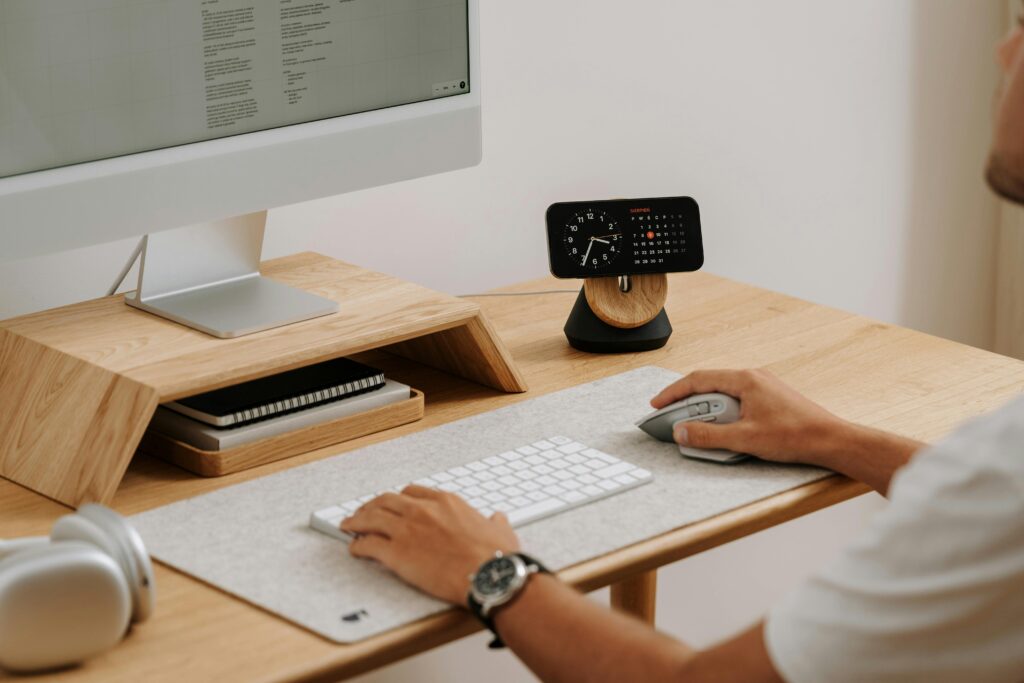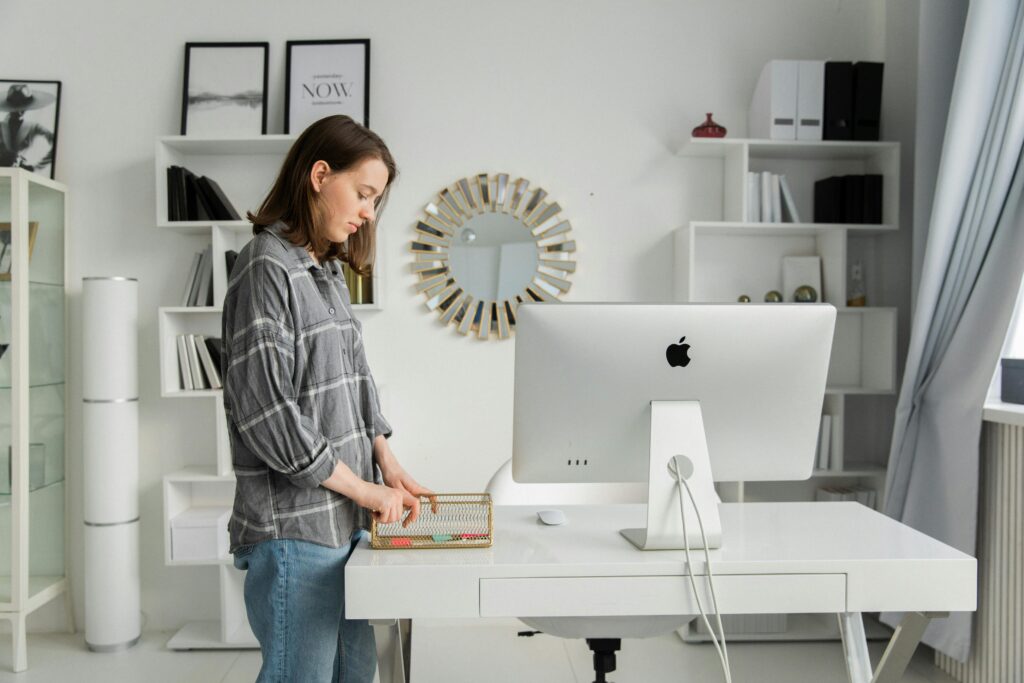
If you’ve had persistent neck tightness, upper back tension, or headaches during or after work and nobody could figure out why — look at your monitor height. I missed this for two years. Then I raised my monitor by four inches. Problem solved in three days.
The Anatomy of the Problem
For every inch your head tilts downward, the effective weight your cervical spine has to support increases substantially. At neutral (looking straight ahead), your head weighs around 10–12 lbs. At 15 degrees of forward tilt, that effective weight increases to roughly 27 lbs. At 30 degrees, it approaches 40 lbs.
Most laptop users have their screens sitting directly on the desk — which forces roughly 30–45 degrees of downward tilt. They’re asking their neck muscles to support the equivalent of a 40+ pound weight for 8 hours a day.
This is not a posture problem. This is a geometry problem. Fix the geometry.
The Golden Rule of Monitor Height
When you’re seated in your normal working position, the top edge (or top third) of your monitor should be at or just slightly below eye level.
This allows your eyes to look forward and very slightly downward at the center of the screen — the most natural and sustainable gaze angle for extended viewing.
How to Measure Your Ideal Height
- Sit in your chair in your normal working posture. Sit up properly — but don’t force it.
- Look straight ahead. Note the exact level where your eyes naturally rest.
- Place a small piece of tape or a sticky note on your wall at that exact height.
- Your monitor should be positioned so its top edge sits at that tape line — or 1–2 inches below it.
Single Monitor Setup
For a single monitor, center it directly in front of you at correct height. The monitor should be at arm’s length — roughly 20–28 inches depending on screen size. Larger screens should be slightly further away.
The test: You should be able to read text comfortably without leaning forward. If you find yourself leaning in, the monitor is either too far away or too small for its distance.
Dual Monitor Setup
If you have a primary monitor you use 80%+ of the time:
Position the primary monitor directly in front of you at correct height. Place the secondary monitor to the side at the same height, angled 30–45 degrees toward you. When working on the secondary screen, you should need to turn your head — not twist your entire body.
If you split time 50/50 between two monitors:
Place both monitors side by side centered in front of you with bezels touching. Raise both to correct height. The seam between them should be directly in front of you, so you look slightly left or right to each screen’s center.
The Laptop Problem — and the Solution
Using a laptop as your primary screen with it sitting on the desk is the ergonomic equivalent of reading a book held in your lap for 8 hours. The screen is simply too low, always.
The solution is a two-component system:
- A laptop stand ($20–$80) that raises the screen to proper eye-level height.
- An external keyboard and mouse ($30–$100 combined) so your hands are at the right level while the screen is at eye level.
This combination is the single highest-ROI ergonomic upgrade for laptop users. You’re looking at $50–$180 total for something that eliminates the primary cause of neck pain in laptop workers.
Do You Need a Monitor Arm?
Not necessarily — but probably yes.
The stand your monitor came with typically adjusts 2–4 inches in height. That may or may not be enough to reach your correct position. A monitor arm gives you full range of motion: height, depth, tilt, and rotation.
Beyond ergonomics, monitor arms free up significant desk depth. The standard monitor stand occupies 8–10 inches of desk space. A monitor arm eliminates that entirely — giving your desk that space back.
For the adjustment freedom alone — especially if you share a setup with someone of different height — a monitor arm is worth the $50–$150 investment.
We’ve reviewed the best monitor arms at every price point — from budget picks to professional-grade.
See the Best Monitor Arms of 2026 →