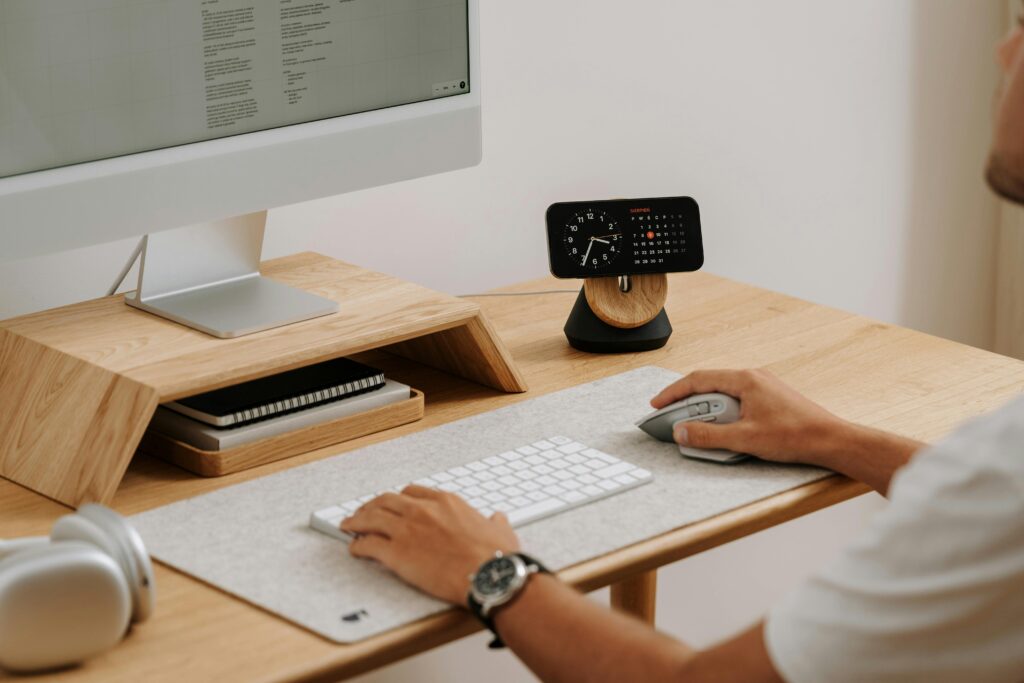
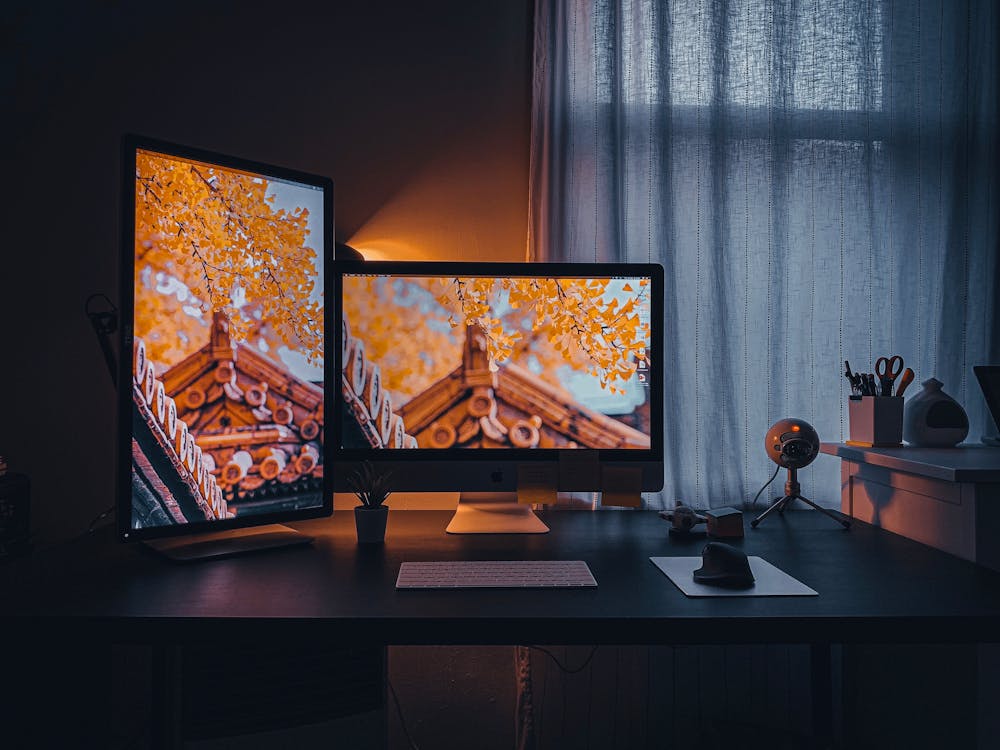
A two-monitor setup can make remote work faster, but in a small home office it can also overwhelm the desk. The main challenge is not only fitting two screens. It is keeping the screens at a comfortable distance while leaving room for the keyboard, mouse, laptop, notes, and cables.
This guide helps you plan a compact dual-monitor setup before buying arms, desks, or accessories. Use it to decide whether two monitors, one large screen, or a laptop-plus-monitor setup makes the most sense for your room.
Two-monitor buying path
Ready to choose the hardware?
After planning screen position and desk depth, compare monitor arms and compact standing desks that fit a two-screen setup.
Start with desk depth and viewing distance
Two monitors need enough distance from your eyes. If the desk is too shallow, both screens may sit too close, especially if they use large factory stands. A monitor arm can help reclaim depth, but only if there is enough room behind or beside the screens for the arm to fold.
For small desks, monitor stands are often the first thing to remove. They consume surface area, limit screen positioning, and make cable routing harder. A stable arm or riser can turn a cramped setup into a cleaner one.
Two monitors vs one ultrawide
| Setup | Works best for | Small-office caution |
|---|---|---|
| Two monitors | Separate apps, calls plus notes, coding, dashboards. | Needs more width and cable management. |
| One ultrawide | Cleaner setup and fewer cables. | Can feel too large on a shallow desk. |
| Laptop plus monitor | Tight rooms and flexible work. | Laptop height often needs a stand. |
Use monitor arms carefully in small rooms
Monitor arms are useful, but they are not magic. Check clamp clearance, desk thickness, wall distance, and whether the arm needs to extend behind the desk. On a desk against a wall, side-by-side positioning may work better than trying to fold both arms backward.
If one monitor is primary, place it directly in front of you and angle the second screen slightly. Centering the gap between two monitors can cause neck rotation all day.
Cable routing matters more with two screens
A single-cable USB-C docking station guide also helps keep a small dual-monitor desk from turning into a hub farm. Two monitors can double the cable clutter: power, display cables, laptop dock, webcam, speakers, and charging. Route cables with enough slack for any height adjustment, especially if the monitors sit on a standing desk.
A clean cable path also makes a small setup feel larger because fewer objects compete for attention on the desktop and floor.
Small two-monitor setup checklist
- Measure desk width and depth before choosing screen size.
- Put the primary monitor directly in front of your chair.
- Use a monitor arm only after checking clamp and wall clearance.
- Keep the keyboard and mouse centered to your body, not the desk.
- Route power and display cables together where possible.
- Consider one ultrawide if two screens make the room feel crowded.
Two-monitor small office FAQ
What desk size do I need for two monitors?
It depends on screen size and monitor arms, but many two-monitor setups feel better on a desk that is at least moderately wide and not too shallow. If the desk is compact, arms or a laptop stand can help reclaim space.
Should both monitors be the same size?
Matching monitors look cleaner and are easier to align, but mixed sizes can work if the primary screen is centered and the secondary screen is angled for reference tasks.
Common mistakes in small dual-monitor setups
The most common mistake is treating both screens as equally important. If you spend most of the day in one app, make that screen the primary display and place it directly in front of you. The second display should support the workflow, not force your neck to rotate every few minutes.
Another mistake is ignoring laptop placement. If the laptop is one of the screens, raise it close to monitor height and use an external keyboard and mouse. Looking down at a laptop while also looking sideways at a monitor is a fast way to make a small setup feel uncomfortable.