Recommended buying guides
Turn this advice into a better setup
If this guide helped you identify what needs fixing, these related buying guides are the next practical step.
A work from home checklist should start with fit — chair support, desk height, and monitor eye level — before you add gadgets. Use the sections below to audit furniture, display setup, lighting, calls, internet, and cable clutter in one pass, then upgrade only what your setup is missing. When you do buy, stick to Amazon so you can compare live price and returns.
1. Ergonomic Furniture Essentials
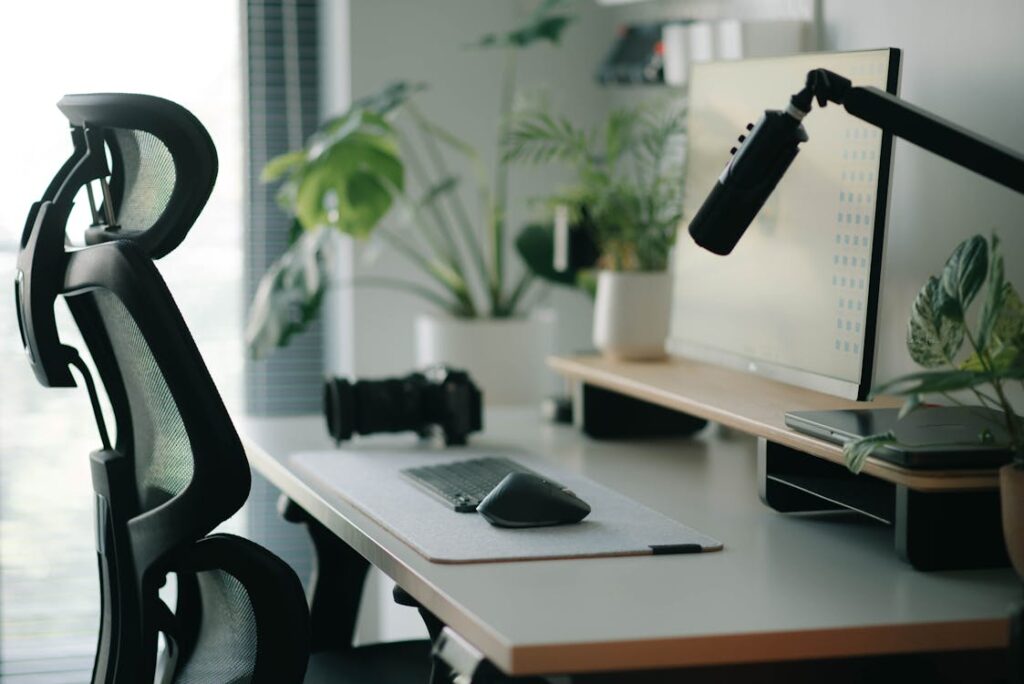
Your furniture is the foundation of your home office. Start with an ergonomic chair that supports your lower back, has adjustable armrests, and allows your feet to rest flat on the floor. Your hips should be at roughly a 90-degree angle when seated. A chair without proper lumbar support can lead to chronic back pain within months of daily use — don’t skimp here.
Your desk height matters just as much. A standard desk is around 29–30 inches tall, but your ideal height depends on your own measurements. Your elbows should be at 90 degrees when typing, with wrists neutral. If you can, invest in a sit-stand desk — alternating between sitting and standing throughout the day dramatically reduces fatigue and improves focus. If a full sit-stand desk isn’t in the budget, a desk converter is a solid intermediate option.
2. Monitor and Display Setup
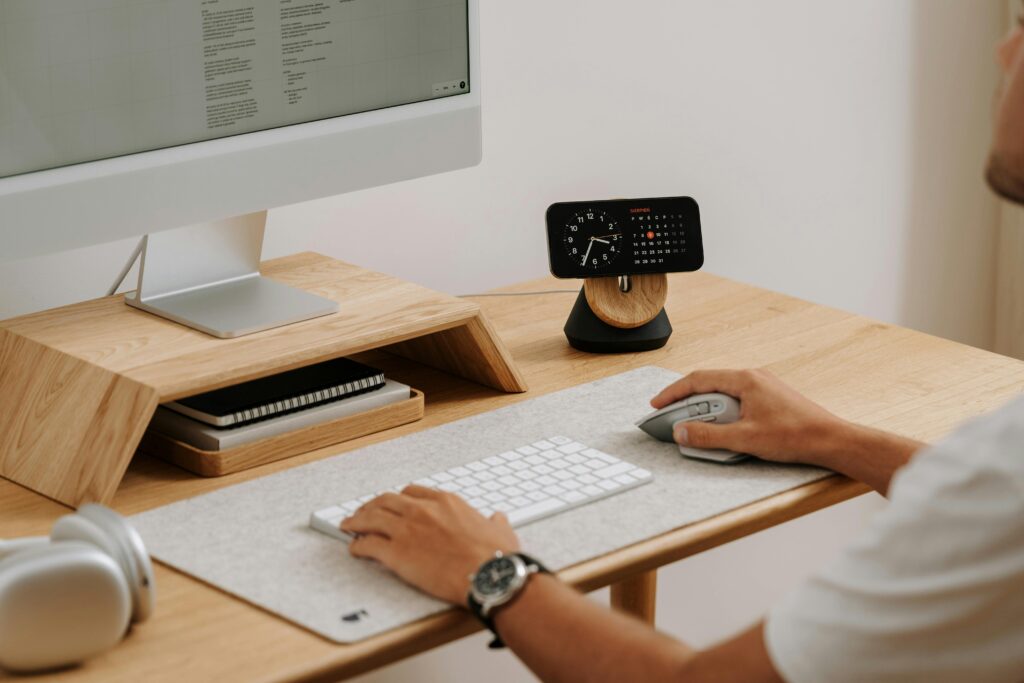
Your monitor should be positioned at arm’s length (about 20–28 inches from your face) with the top of the screen at or slightly below eye level. This prevents neck strain from looking up or down for hours. If you use a laptop as your primary machine, a laptop stand paired with an external keyboard and mouse is a game-changer for posture.
Consider a second monitor if your work involves referencing multiple documents or windows simultaneously. Studies consistently show that dual monitors increase productivity by 20–30% for knowledge workers. Position the secondary screen at an angle that doesn’t require turning your head more than 35 degrees from center. An ultrawide monitor is a compelling single-screen alternative if desk space is tight.
3. Lighting for Productivity and Eye Health
Poor lighting is one of the most overlooked causes of eye strain, headaches, and afternoon energy crashes. The goal is to balance natural light with artificial light so your screen doesn’t appear much brighter or dimmer than the room around it. Position your desk perpendicular to windows rather than directly facing or behind them — this prevents glare and harsh backlighting.
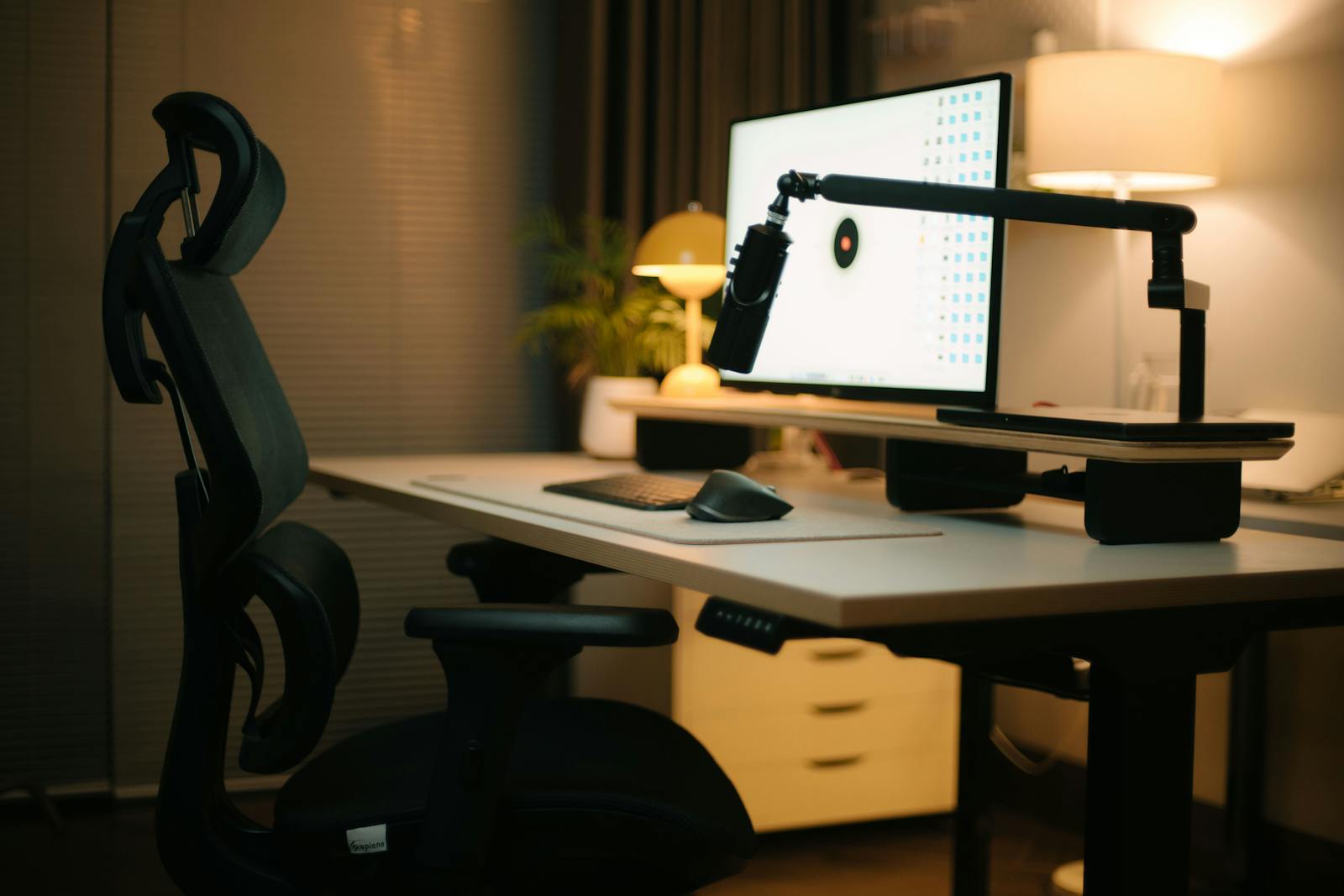
For artificial lighting, opt for a desk lamp with adjustable color temperature and brightness. Warmer tones (2700–3000K) are better for early mornings and late afternoons, while cooler tones (5000–6500K) help you stay alert during peak work hours. A bias light placed behind your monitor can also reduce eye fatigue during long screen sessions.
4. Audio and Video for Professional Calls
Remote work means video calls — and how you sound and look on those calls directly affects how you’re perceived professionally. A quality external webcam (1080p or higher) is worth the investment if your laptop camera is poor. Position it at eye level so you’re not looking down at the lens, and ensure you have good front-facing light so your face is clearly visible, not backlit.
For audio, a USB condenser microphone or a quality headset with a boom mic is far superior to built-in laptop microphones. Background noise is one of the top complaints in remote team environments. If your workspace is noisy, consider noise-canceling headphones with a quality microphone — they’ll handle both listening and speaking in one device.
5. Internet and Tech Infrastructure
A reliable, fast internet connection isn’t optional for remote work — it’s the lifeline of your entire operation. For video conferencing and cloud-based work, aim for at least 50 Mbps download and 10 Mbps upload speeds. If you share bandwidth with others at home, you may need to upgrade your plan or prioritize work traffic with QoS settings on your router.
Use a wired Ethernet connection whenever possible rather than relying solely on Wi-Fi — it’s more stable and faster for data-intensive tasks. If you must use Wi-Fi, a Wi-Fi 6 router and positioning yourself closer to the router makes a significant difference. Keep a mobile hotspot as a backup for critical meetings in case your main internet goes down unexpectedly.
6. Organization and Cable Management
A cluttered desk leads to a cluttered mind. Start with ruthless minimalism: only the items you use daily should be on your desk surface. Everything else gets stored in drawers, shelves, or desktop organizers. A clean, organized workspace reduces decision fatigue and makes it easier to get into a focused state quickly when you sit down to work.
Cable management is a separate but equally important discipline. Use cable clips, velcro ties, or a cable management tray to route wires neatly and keep them off the floor. Not only does this look more professional on video calls, it also prevents tripping hazards and makes it much easier to identify and swap out cables when needed. A cable spine or raceway mounted to the back of your desk is one of the cleanest solutions available.
7. Comfort and Environment
Temperature, air quality, and ambient sound all affect your focus and stamina throughout the workday. The research-backed ideal room temperature for cognitive work is around 70–77°F (21–25°C). If your office runs warmer or cooler, a small space heater or desk fan can help regulate your immediate environment without changing the whole house.
Plants are a surprisingly effective productivity booster — studies show indoor plants can increase concentration by up to 15% and reduce stress. Even a single low-maintenance plant on your desk makes a difference. A white noise machine or app can help mask distracting background sounds if you’re working in a busy household or near street noise.
Ultimate Home Office Checklist
- ✅ Ergonomic chair with lumbar support and adjustable armrests
- ✅ Desk at correct height (elbows at 90° when typing)
- ✅ Sit-stand desk or converter for posture variation
- ✅ Monitor at arm’s length, top of screen at eye level
- ✅ Laptop stand + external keyboard/mouse if using a laptop
- ✅ Second monitor or ultrawide for multitasking
- ✅ Desk lamp with adjustable color temperature
- ✅ Desk positioned perpendicular to windows
- ✅ External webcam at eye level with good front lighting
- ✅ USB microphone or headset with boom mic
- ✅ Wired Ethernet connection to router
- ✅ Internet plan with 50+ Mbps download / 10+ Mbps upload
- ✅ Mobile hotspot as internet backup
- ✅ Minimal desk clutter — daily-use items only on surface
- ✅ Cable management tray or clips
- ✅ Room temperature between 70–77°F
- ✅ At least one indoor plant
- ✅ White noise machine or app if noise is an issue
Frequently Asked Questions
What’s the most important item on the home office checklist?
If you had to pick one, an ergonomic chair delivers the most immediate and lasting impact on your health and productivity. You’ll spend thousands of hours in that chair over the course of your career — it’s the single investment that pays dividends every single day. A poor chair leads to back pain, poor posture, and fatigue that compounds over months and years.
How much should I budget for setting up a home office?
A solid functional home office can be built for $800–$1,500, covering a decent ergonomic chair, a proper desk, an external monitor, and basic accessories. A premium setup with a sit-stand desk, high-end chair, dual monitors, and professional audio/video gear can run $3,000–$5,000+. Start with the essentials and upgrade over time — a good chair and monitor setup should be your first priorities.
Do I really need a dedicated room for a home office?
A dedicated room is ideal because it creates a clear psychological boundary between work and personal life, which is one of the biggest challenges of remote work. But it’s not strictly necessary. Many remote workers successfully use a dedicated corner of a bedroom or living room. The key is to define the space clearly — use physical dividers, consistent lighting, and try to use that spot exclusively for work so your brain associates it with focus mode.

Also useful: best ergonomic office chairs · affordable chairs under $500 · best electric standing desks · best monitor arms · budget home office under $500.