Setting up a productive home office isn’t just about finding a quiet corner and opening your laptop. The right workspace — with the right equipment, lighting, and organization — can be the difference between burning out by 2 PM and finishing your day energized and focused. Whether you’re building your first remote setup or optimizing an existing one, this ultimate checklist covers everything you need.
1. Desk and Chair: Your Foundation
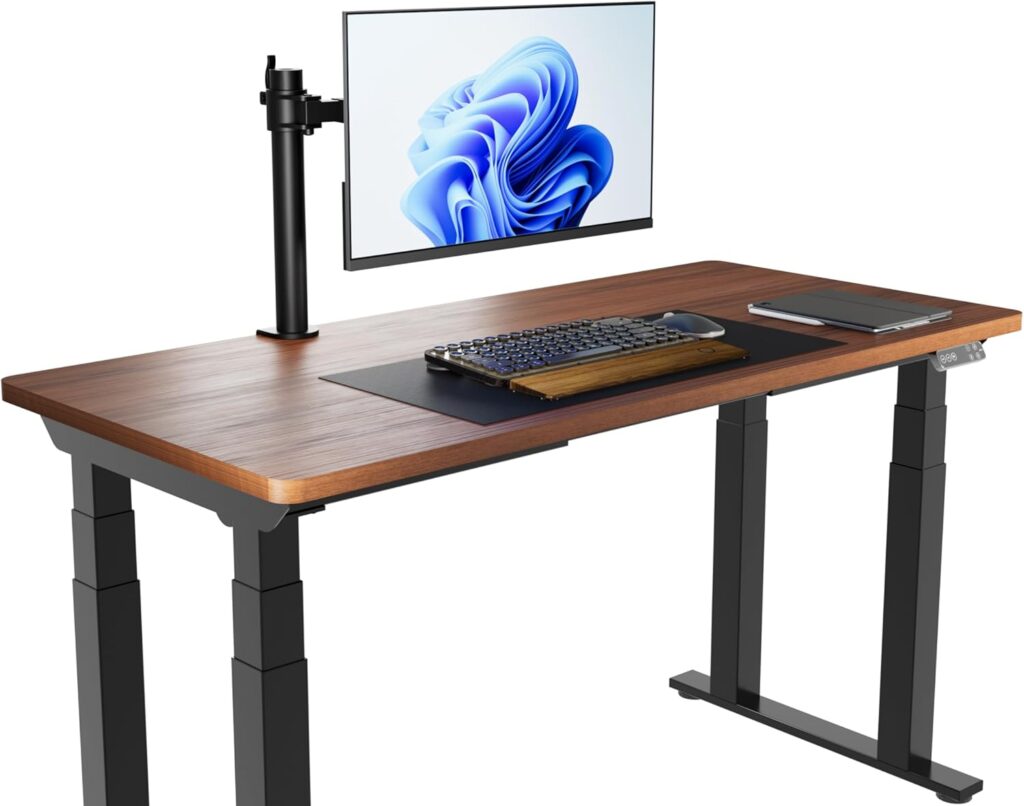
Your desk and chair are the most important investments you’ll make for your home office. A desk that’s too small forces you to work in cramped, awkward positions, while a chair that lacks lumbar support can cause back pain that compounds over months and years. Look for a desk with at least 24 inches of depth and 48 inches of width — enough room for a monitor, keyboard, and some working space alongside. A height-adjustable (sit-stand) desk is worth the upgrade if your budget allows, since alternating between sitting and standing throughout the day significantly reduces physical strain.
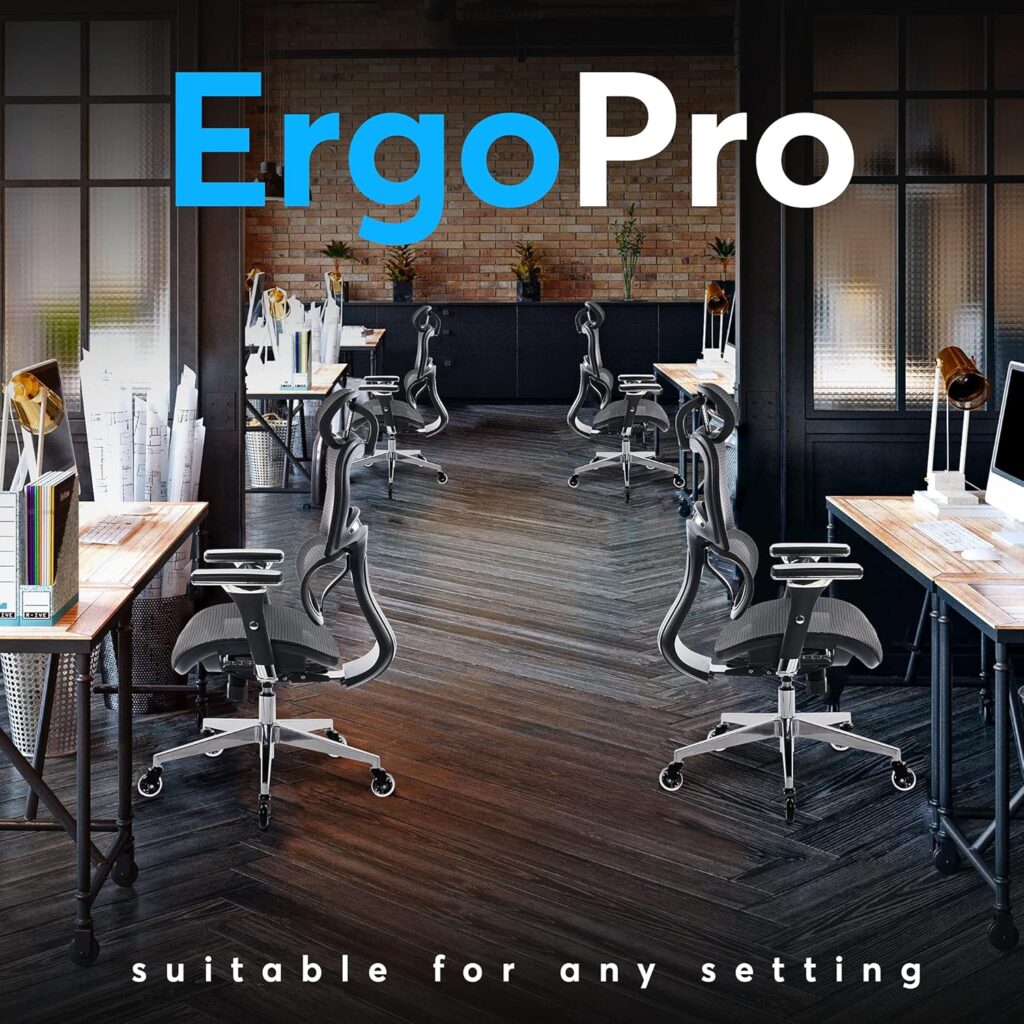
For your chair, prioritize adjustability over aesthetics. You want adjustable seat height, lumbar support, and armrests. Your feet should sit flat on the floor (or on a footrest), your knees at roughly 90 degrees, and your lower back supported by the chair’s lumbar curve. Don’t rely on your dining chair for more than a few hours — it simply wasn’t designed for an eight-hour workday.
2. Monitor Setup and Eye-Level Display
Working from a laptop screen alone is one of the fastest ways to develop neck pain and eye strain. An external monitor positioned at or just below eye level — so your gaze falls naturally at the top third of the screen — keeps your neck in a neutral position. Position the monitor about an arm’s length (20–28 inches) away from your face, and tilt it back 10–20 degrees to reduce glare. If you use a laptop as your primary machine, a monitor arm or laptop stand combined with an external keyboard and mouse is the ideal ergonomic setup.
Dual monitor setups are popular among remote workers who juggle multiple applications, but they introduce ergonomic trade-offs if not configured properly. Place the primary monitor directly in front of you and the secondary monitor to the side at the same height, angled slightly inward. If you use both monitors equally, center them so neither requires you to turn your head for extended periods.
3. Lighting: Natural and Artificial
Good lighting does two things: it reduces eye strain during work hours, and it supports your natural circadian rhythm so you sleep better at night. Position your desk perpendicular to a window so natural light comes from the side rather than directly behind or in front of your screen. Direct sunlight hitting your monitor creates glare that your eyes must constantly compensate for, leading to fatigue within hours.
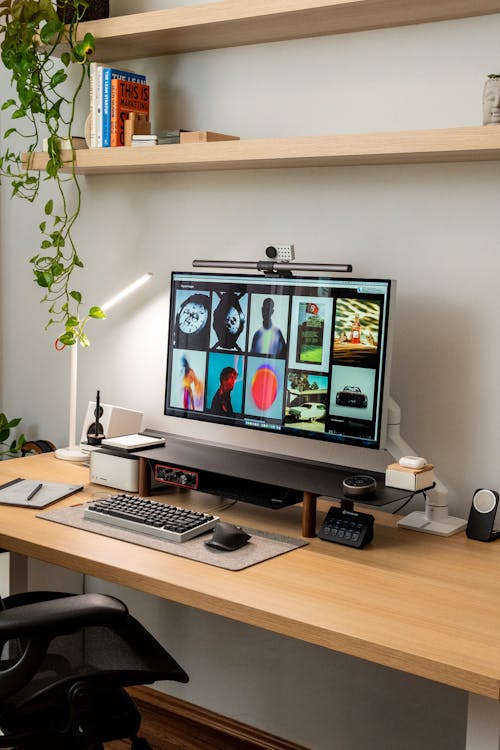
For artificial lighting, a combination of ambient (room) lighting and task lighting works best. A quality desk lamp with adjustable color temperature — cooler daylight tones (5000–6500K) for focus during the day, warmer tones (2700–3000K) in the evening — helps manage energy levels throughout your workday. Bias lighting placed behind your monitor also reduces the contrast between the bright screen and the dark wall behind it, which is a major contributor to digital eye strain.
4. Internet and Tech Setup
A reliable, fast internet connection isn’t optional for remote work — it’s infrastructure. If your router is on the opposite side of the house from your workspace, a wired Ethernet connection or a mesh Wi-Fi node placed near your desk will dramatically improve call stability and upload speeds. For video conferencing in particular, aim for at least 10 Mbps upload speed to avoid pixelated video and audio dropouts.
Beyond connectivity, your core tech checklist should include: a dedicated webcam (laptop cameras are notoriously mediocre), a quality USB or XLR microphone for calls, and a UPS (uninterruptible power supply) if you live in an area prone to power fluctuations. A USB hub or docking station is worth the investment if you frequently connect multiple peripherals — it keeps your desk organized and lets you connect everything with a single cable.
5. Audio: Headphones and Microphone Quality
How you sound on calls matters more than most remote workers realize. Poor audio — muffled, echoey, or constantly cutting out — forces your colleagues to work harder to understand you and signals a lack of professionalism, even if unintentionally. A dedicated USB condenser microphone positioned 6–8 inches from your mouth, slightly off to the side, dramatically improves your call presence. Alternatively, a quality headset with a built-in boom microphone is a practical all-in-one solution.
Noise-canceling headphones are one of the highest-ROI purchases for anyone working from home, especially if you share your space with family members, roommates, or street noise. They let you enter a focused work state on demand. Look for hybrid active noise cancellation, which handles both continuous background noise (air conditioning, traffic) and intermittent sounds (voices, footsteps).
6. Organization and Cable Management
A cluttered desk is a cluttered mind — and there’s actual research to support that. Visual disorder increases cortisol levels and reduces your ability to focus. Cable management is the unglamorous but transformative upgrade that most home office setups desperately need. Cable clips, velcro ties, and a cable management tray mounted under your desk can take a chaotic tangle and turn it into a clean, professional workspace in an afternoon.
For desk organization, the key principle is keeping frequently used items within arm’s reach and storing everything else out of sight. A monitor riser with storage underneath, a small drawer unit beside your desk, and a pegboard or shelf on the wall above can dramatically increase your usable space without requiring a larger desk. Keep only what you use daily on the desk surface itself.
7. Comfort Accessories
Small comfort accessories make a significant difference over an eight-hour workday. A wrist rest for your keyboard and mouse reduces the risk of repetitive strain injury by keeping your wrists in a neutral position. An anti-fatigue mat is essential if you use a standing desk — standing on a hard floor for extended periods creates muscle fatigue faster than most people expect. A footrest helps if your chair height means your feet don’t sit comfortably flat on the floor.
Temperature control also deserves attention. Working in a room that’s too warm increases fatigue and reduces cognitive performance; too cold and you’ll find yourself distracted and physically uncomfortable. Aim for 68–72°F (20–22°C) as a baseline and adjust based on your personal preference. A small fan, space heater, or even just a good hoodie at your desk can make a significant difference to how long you can sustain focused work.
8. Boundaries and Dedicated Space
The most overlooked element of a home office isn’t a piece of equipment — it’s the psychological boundary between work and personal life. When your office is also your living room or bedroom, your brain never fully switches off from work mode, and you never fully rest. If at all possible, dedicate a specific room or clearly defined area exclusively to work. Even a room divider, a particular corner, or simply a specific chair used only for work can help your brain associate that space with “focus mode.”
Equally important: have a shutdown ritual. Close your laptop, tidy your desk, and physically leave the workspace at the end of your workday. This delineation is what prevents the subtle but corrosive burnout that creeps up on remote workers who are technically always “at the office.”
Quick Checklist
- ✅ Ergonomic chair with lumbar support and adjustable height
- ✅ Desk with sufficient width and depth (at least 48″ × 24″)
- ✅ External monitor at eye level, 20–28 inches away
- ✅ Monitor arm or stand for correct height positioning
- ✅ External keyboard and mouse (if using a laptop)
- ✅ Desk lamp with adjustable color temperature
- ✅ Natural light coming from the side (not behind the screen)
- ✅ Reliable internet with at least 10 Mbps upload speed
- ✅ Wired Ethernet connection or mesh Wi-Fi node at desk
- ✅ Dedicated webcam for video calls
- ✅ Quality USB microphone or headset with boom mic
- ✅ Noise-canceling headphones
- ✅ Cable management system (clips, velcro ties, tray)
- ✅ Wrist rest for keyboard and mouse
- ✅ Anti-fatigue mat (if using a standing desk)
- ✅ Dedicated, defined workspace area
- ✅ End-of-day shutdown ritual in place
Frequently Asked Questions
How much should I budget for a complete home office setup?
A functional, ergonomic home office setup typically costs between $800 and $2,500 depending on the quality of your chair, desk, and monitor. Your chair and monitor are the highest-priority investments — allocate at least $300–500 for each. You can build out other elements (microphone, lighting, accessories) over time, but don’t compromise on the fundamentals that directly affect your posture and eye health.
Do I really need a standing desk?
A standing desk isn’t essential, but it’s one of the most impactful upgrades you can make if you already have a solid chair and monitor setup. The key benefit isn’t standing itself — it’s the ability to alternate between sitting and standing throughout the day, which prevents the physical stiffness and fatigue that builds up from staying in any single position for too long. If a full electric standing desk is outside your budget, a desktop converter is a much cheaper way to test whether sit-stand working suits you.
What’s the single most important item on this checklist?
If you can only upgrade one thing, make it your chair. You spend more time in it than any other piece of equipment in your office, and the cumulative effects of poor seating — back pain, hip tightness, reduced circulation — compound over months and years of remote work. A quality ergonomic chair is a long-term investment in your physical health that pays off every single day.