
Setting up a home office that actually supports your productivity, health, and focus doesn’t happen by accident—it takes deliberate planning. Whether you’re just starting to work from home or you’ve been at it for years, this ultimate home office checklist covers everything you need to build a workspace that works as hard as you do.
1. The Right Desk and Chair: Your Foundation
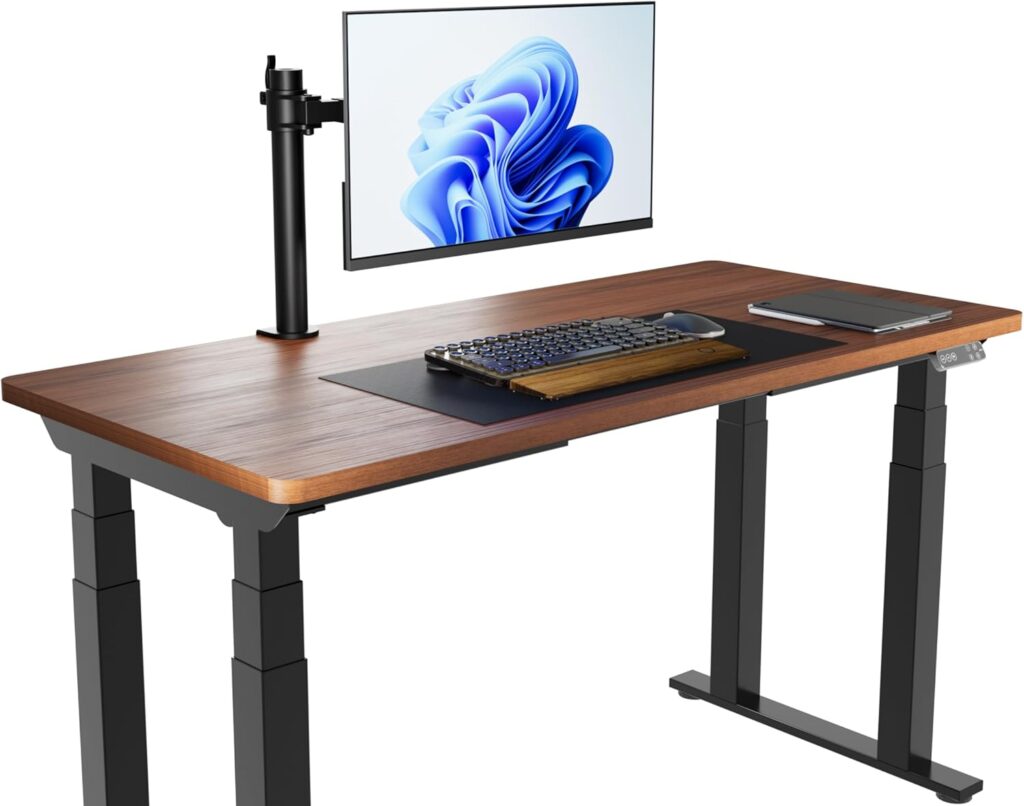
Your desk and chair are the most important investments in your home office. A desk that’s too small creates clutter and limits your workflow, while the wrong chair can lead to chronic back pain and fatigue. Choose a desk with enough surface area for your monitor, keyboard, mouse, and any secondary tools you use regularly—at minimum 48 inches wide is recommended for most setups.
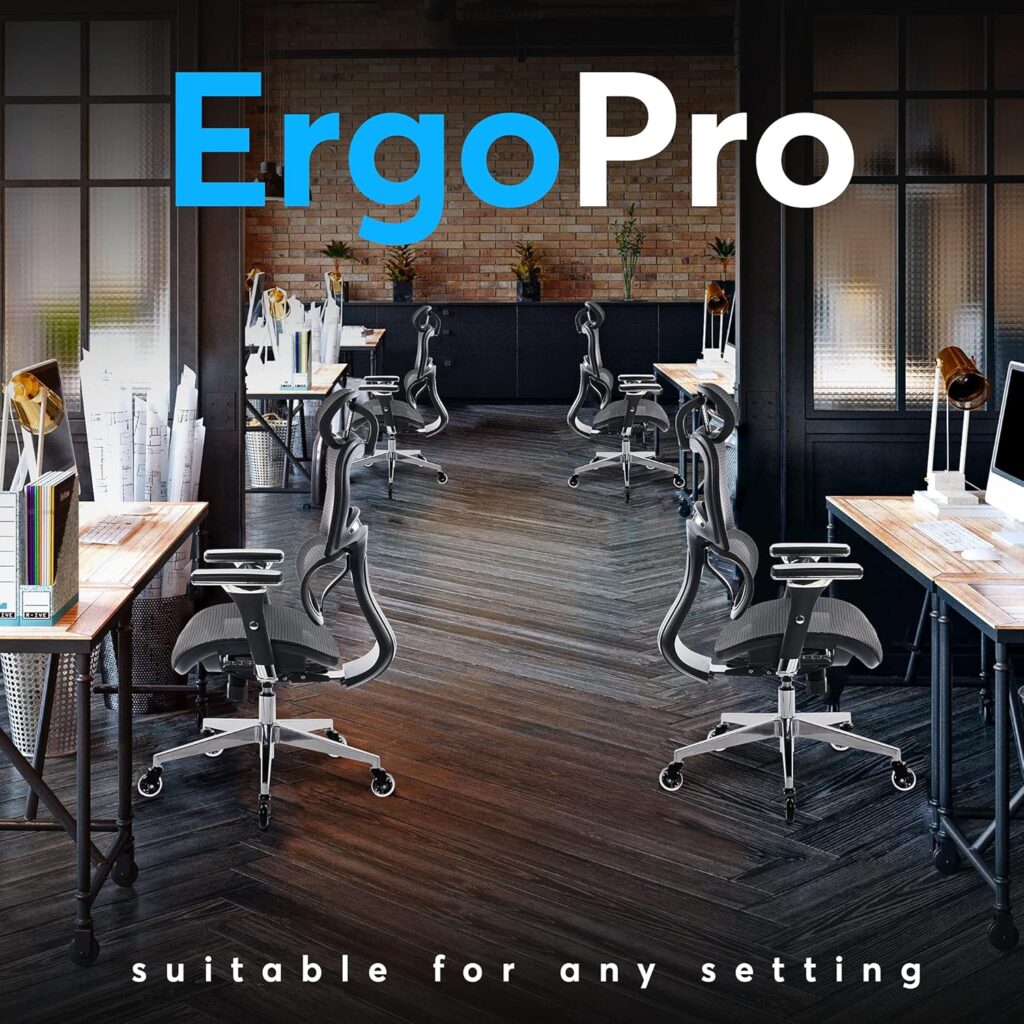
For your chair, look for lumbar support, adjustable seat height, and armrests. Your feet should rest flat on the floor with your knees at roughly a 90-degree angle. Ergonomic chairs from brands like Herman Miller, Steelcase, or even well-reviewed budget options from brands like Sihoo can make a dramatic difference in how you feel by end of day. If budget is a constraint, a quality seat cushion and lumbar pillow can meaningfully improve an ordinary chair.
2. Monitor Setup for Maximum Productivity
Your monitor height and distance have a direct impact on eye strain and neck tension. The top of your monitor should sit at or just below eye level, positioned roughly 20–28 inches from your face. If you’re using a laptop as your primary display, a laptop stand paired with an external keyboard and mouse is essential—looking down at a laptop screen for hours is a recipe for neck problems.
Consider a dual-monitor setup if your work involves comparing documents, coding, or managing multiple applications simultaneously. Studies consistently show that dual monitors can increase productivity by 20–30% for knowledge workers. A monitor arm gives you flexibility to adjust height and depth on the fly and also frees up valuable desk space.
3. Lighting: Natural and Artificial
Lighting is one of the most overlooked aspects of a home office setup—and one of the biggest contributors to eye strain, headaches, and fatigue. Position your desk so that natural light comes from the side, not directly behind or in front of your monitor. Direct sunlight hitting your screen creates harsh glare that strains your eyes even when you don’t notice it consciously.
For artificial lighting, a combination of ambient lighting (overhead or floor lamps) and task lighting (a desk lamp aimed at your work surface) works best. Avoid cool, harsh fluorescent bulbs; opt for warm to neutral white LEDs in the 3000–4000K range. If you’re on video calls regularly, a ring light or a softbox positioned in front of you dramatically improves your on-camera appearance.
4. Reliable Internet and Tech Essentials
A slow or unstable internet connection is one of the fastest ways to derail your workday. If your work involves video calls, large file transfers, or cloud-based tools, aim for at least 100 Mbps download speed—and prioritize a wired Ethernet connection over Wi-Fi for calls and latency-sensitive tasks. A quality router and a mesh network system (if your home is large) can eliminate dead zones.
Beyond your internet connection, a UPS (Uninterruptible Power Supply) is a smart investment to protect your equipment from power surges and give you time to save your work during outages. A USB hub or docking station simplifies cable management and lets you connect all your peripherals through a single connection. Don’t forget a quality webcam if your laptop camera isn’t sharp enough—clear video on calls conveys professionalism and attention to detail.
5. Audio: Headset, Microphone, and Speakers
Poor audio on calls is distracting for everyone involved. A quality headset with a noise-canceling microphone is essential if you’re in meetings frequently or work in a noisy environment. For focused solo work, over-ear noise-canceling headphones can help you block out household distractions and get into deep work mode. Brands like Sony, Bose, and Jabra offer excellent options across different price points.
If you prefer not to wear headphones all day, a dedicated USB microphone (like the Blue Yeti or Rode NT-USB) combined with external speakers offers great sound quality without ear fatigue. The key is ensuring your voice sounds clear and professional on calls—muffled audio or background noise erodes trust and makes communication harder.
6. Organization and Cable Management
A cluttered desk creates a cluttered mind. Invest in simple organizational tools: a cable management tray or clips keep wires off your desk surface and prevent tangling. A small desktop organizer or drawer unit holds pens, notebooks, and other frequently used items within reach. Use a filing system—physical or digital—to prevent paper buildup on your workspace.
Velcro cable ties are inexpensive and reusable, making them ideal for bundling cables behind your desk. A monitor riser with built-in storage can add vertical space while keeping small items organized. The goal is a workspace where you can find everything immediately without searching—time spent hunting for items chips away at focus and momentum throughout the day.
7. Air Quality, Temperature, and Comfort
Environmental comfort directly affects your cognitive performance. Research shows that working in temperatures between 70–77°F (21–25°C) optimizes focus and productivity. A small fan or space heater lets you fine-tune your personal comfort without adjusting your whole home’s thermostat. Similarly, air quality matters—a small air purifier can reduce allergens and improve the freshness of air in a closed room where you spend eight or more hours a day.
Adding a plant or two to your home office isn’t just aesthetic—studies from NASA and others have found that certain indoor plants improve air quality by filtering toxins. Pothos, snake plants, and peace lilies are low-maintenance options that thrive in indoor conditions. Natural elements in your workspace also reduce stress and boost mood, making them a worthwhile addition to your setup.
Ultimate Home Office Checklist
- ✅ Ergonomic desk (min. 48″ wide) at correct height
- ✅ Adjustable chair with lumbar support
- ✅ Monitor at eye level, 20–28″ from face
- ✅ External keyboard and mouse (if using laptop)
- ✅ Natural light from the side, not behind the screen
- ✅ Desk lamp or task lighting (3000–4000K)
- ✅ Wired Ethernet connection (100+ Mbps)
- ✅ UPS / surge protector for all equipment
- ✅ USB hub or docking station
- ✅ Noise-canceling headset or headphones
- ✅ Quality webcam for video calls
- ✅ Cable management system in place
- ✅ Desktop organizer and filing system
- ✅ Temperature control (fan or space heater)
- ✅ Air purifier or at least one indoor plant
Frequently Asked Questions
What is the most important item in a home office setup?
If you had to prioritize one thing, it’s your chair. You’ll spend thousands of hours sitting in it, and a poor-quality chair is one of the leading causes of back pain, fatigue, and long-term posture problems among remote workers. A quality ergonomic chair is an investment that pays dividends in comfort and health every single day.
How much should I budget for a home office setup?
A functional, ergonomic home office can be set up for as little as $500–$800 if you’re starting from scratch with budget-conscious choices. A mid-range setup runs $1,500–$3,000 and covers quality versions of all the essentials. A premium setup with standing desks, high-end monitors, and top-tier peripherals can run $5,000 or more. The good news is that you don’t need to do it all at once—prioritize your chair, monitor, and internet connection first, then upgrade incrementally.
Do I really need a dedicated room for my home office?
A dedicated room is ideal but not essential. What matters more is having a defined, consistent workspace where your brain associates the environment with focused work. Even a well-organized desk in a bedroom corner can be an effective home office if you’re disciplined about your setup and routine. The key is having clear physical and psychological separation between “work mode” and “rest mode” as much as your space allows.