Recommended buying guides
Turn this advice into a better setup
If this guide helped you identify what needs fixing, these related buying guides are the next practical step.
Learn how to set up dual monitors for remote work, including screen angle, height, primary monitor placement, desk depth, and common neck-pain mistakes. Use this guide to make two screens feel natural instead of cramped.
Most people plug in a second monitor, drag it next to the first, and call it done. That’s not a dual monitor setup. That’s two monitors pointed in slightly different directions, quietly causing you neck pain you’ll attribute to sleeping wrong.
Why Dual Monitors Actually Work
Research from Jon Peddie Research found that multiple monitors increase productivity by an average of 42%. That’s not because people work harder — it’s because they stop switching contexts. Every time you alt-tab to find a document, you lose 15–30 seconds plus the mental overhead of re-orienting yourself. Dual monitors eliminate that friction entirely.
But the gains disappear — and the pain begins — when the setup is wrong. Here’s how to do it right.
Step 1 — Choose Your Monitor Configuration
Before you buy anything, decide how you’ll actually use the second screen. There are three common setups:
Primary + Reference: One large screen for active work, one for documentation, Slack, email, or video calls. The most common setup for remote workers and knowledge workers.
Dual Primary: Two identical screens used equally. Best for developers, traders, or video editors who genuinely split their workflow 50/50.
Laptop + External: Laptop as secondary, external monitor as primary at eye level. The most common home office configuration — and the one most people get wrong.
Matching sizes and resolutions matters more than most people realize. A 27″ 4K next to a 24″ 1080p creates visual jarring and makes it genuinely hard to move windows cleanly between screens. If you’re buying a second monitor, aim to match your existing one as closely as possible.
Step 2 — The Correct Physical Arrangement
This is where most setups go wrong, and it’s the root cause of the neck and shoulder pain people blame on “bad posture.”
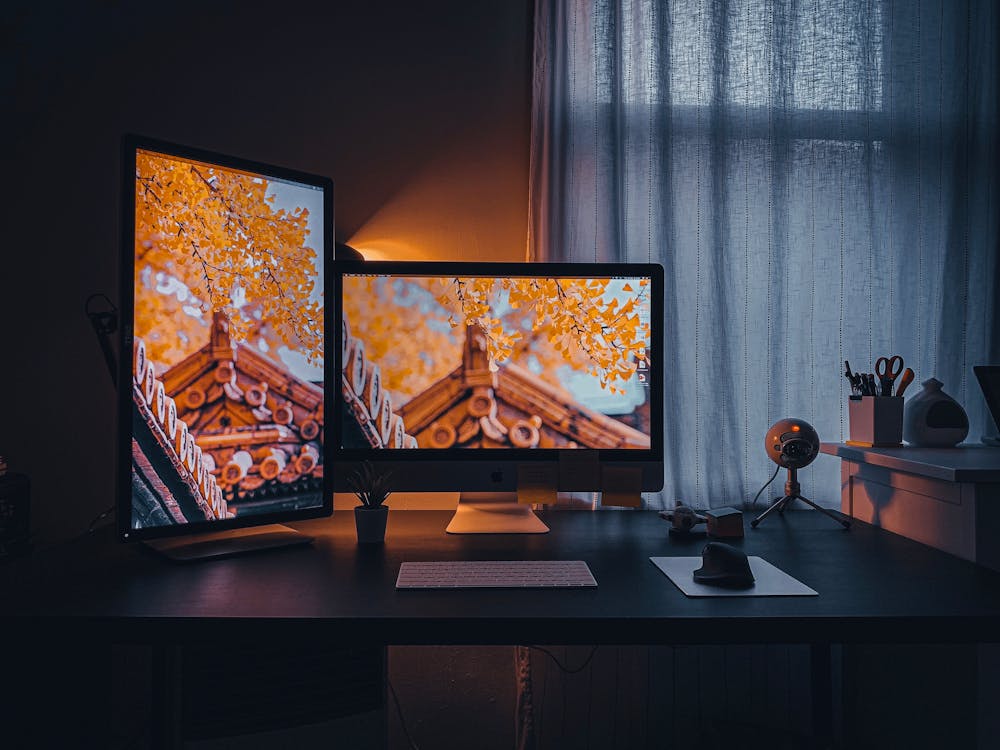
Side-by-side (equal use): Position both monitors directly in front of you, angled inward at 15–30 degrees, so the inner edges meet at your nose line. Your neck should rotate equally left and right when switching screens. The goal is symmetry.
Primary + secondary (unequal use): Place your primary monitor directly centered in front of you. The secondary goes to the side — typically your non-dominant side (left if you’re right-handed). You’ll glance at it occasionally, not stare at it for hours.
The mistake everyone makes: placing both monitors flat and parallel to each other. This forces your neck to rotate a full 45+ degrees to see the secondary screen, which causes cumulative strain within weeks. Angling inward is not optional — it’s the whole point.
Step 3 — Height and Distance
Apply the same rules as a single-monitor setup — but consistently across both screens:
Height: Top of the screen at or just below eye level. If both monitors aren’t at the same height, your eyes will constantly readjust between focal planes. This is exhausting and causes headaches that take days to connect back to your desk setup.
Distance: Arm’s length from your face — roughly 20–28 inches depending on screen size. Larger screens can sit slightly further back.
Tilt: 10–20 degrees backward so the bottom of the screen is slightly closer to you than the top.
A dual monitor arm is the cleanest solution for getting both screens to precisely the same height and angle. It also frees up significant desk space. See our Best Monitor Arms for Standing Desks guide for tested recommendations.
Step 4 — Match Brightness and Color Temperature
Mismatched monitors create invisible eye strain. Your eyes are constantly compensating for the difference in brightness and color — a low-grade fatigue you feel but can’t identify.
Calibrate both monitors to the same brightness (aim for 80–120 nits in a normal office environment), color temperature (6500K is the standard daylight setting), and refresh rate (if both support 60Hz or higher, match them).
Use your OS display settings or a free tool like f.lux or Windows Night Light to sync color temperature across both screens automatically as the day progresses.
Step 5 — Ports, Cables, and Management
If your laptop only has a couple of ports, a USB-C docking station guide can cut cable sprawl while you set up the second screen. Check your GPU or laptop’s output ports before purchasing monitors. Most modern laptops offer USB-C/Thunderbolt, HDMI, or DisplayPort. A single USB-C dock can often drive two external monitors simultaneously while charging your laptop — a clean single-cable solution.
Cable discipline matters twice as much with two monitors. Use a cable tray mounted under your desk, velcro cable ties, and a cable box to hide your power strip. Dual monitor cable chaos is twice as distracting and creates what researchers call “visual noise” — background stimuli your brain continuously processes at low priority.
Step 6 — OS Configuration
Windows: Right-click desktop → Display Settings → drag the display thumbnails so their virtual positions match their physical positions on your desk. Under the primary monitor, select “Make this my main display.” This controls where the taskbar lives.
Mac: System Settings → Displays → Arrangement tab. Drag the white menu bar rectangle to your primary monitor. Confirm “Mirror Displays” is unchecked.
One underrated tip: set different wallpapers on each screen. It’s a subtle but effective visual cue that reinforces which screen is your primary workspace — particularly useful in the first few weeks as the setup becomes muscle memory.
Quick-Setup Checklist
- Primary monitor centered directly in front of you
- Secondary monitor to the side, angled 15–30 degrees inward
- Both screens at the same height (top at or just below eye level)
- Both screens at arm’s length distance
- Brightness and color temperature matched on both monitors
- OS display arrangement mirrors physical layout on desk
- Main display (taskbar/menu bar) set correctly in OS settings
- Cables managed — tray, velcro ties, and cable box in place
- Different wallpapers on each screen to reinforce primary/secondary roles
Need help positioning both screens perfectly? A dual monitor arm solves height, angle, and desk space in one go. See our 5 Best Monitor Arms for Standing Desks →
📚 Related Guides You Might Like

Working with limited desk space? See the small home office two-monitor setup guide before choosing arms, screen size, or cable routing.